iOS code signing is the process of cryptographically signing an app with an Apple-issued signing certificate. It allows iPhones, iPads, and the App Store to verify who built it and confirm that it hasn't been modified. A provisioning profile ties the certificate to a specific app, its capabilities, and the devices allowed to run it.
What is iOS code signing?
Apple's platforms won't run unsigned code. Every app installed on an iPhone or iPad, whether from the App Store, TestFlight, or a developer's Mac, carries a cryptographic signature that the operating system checks before launch. It's Apple's implementation of code signing, the broader practice of proving who built an app and that nobody has tampered with it since.
This makes iOS the strictest mainstream platform for code signing. On other platforms, signing is often a trust indicator: a warning dialog you can click through. Android, by contrast, builds signing around a keystore file you generate and control yourself. On iOS it's a hard gate enforced by the operating system. The signature proves two things: identity (a specific Apple Developer account built this binary) and integrity (not a single byte has changed since it was signed).
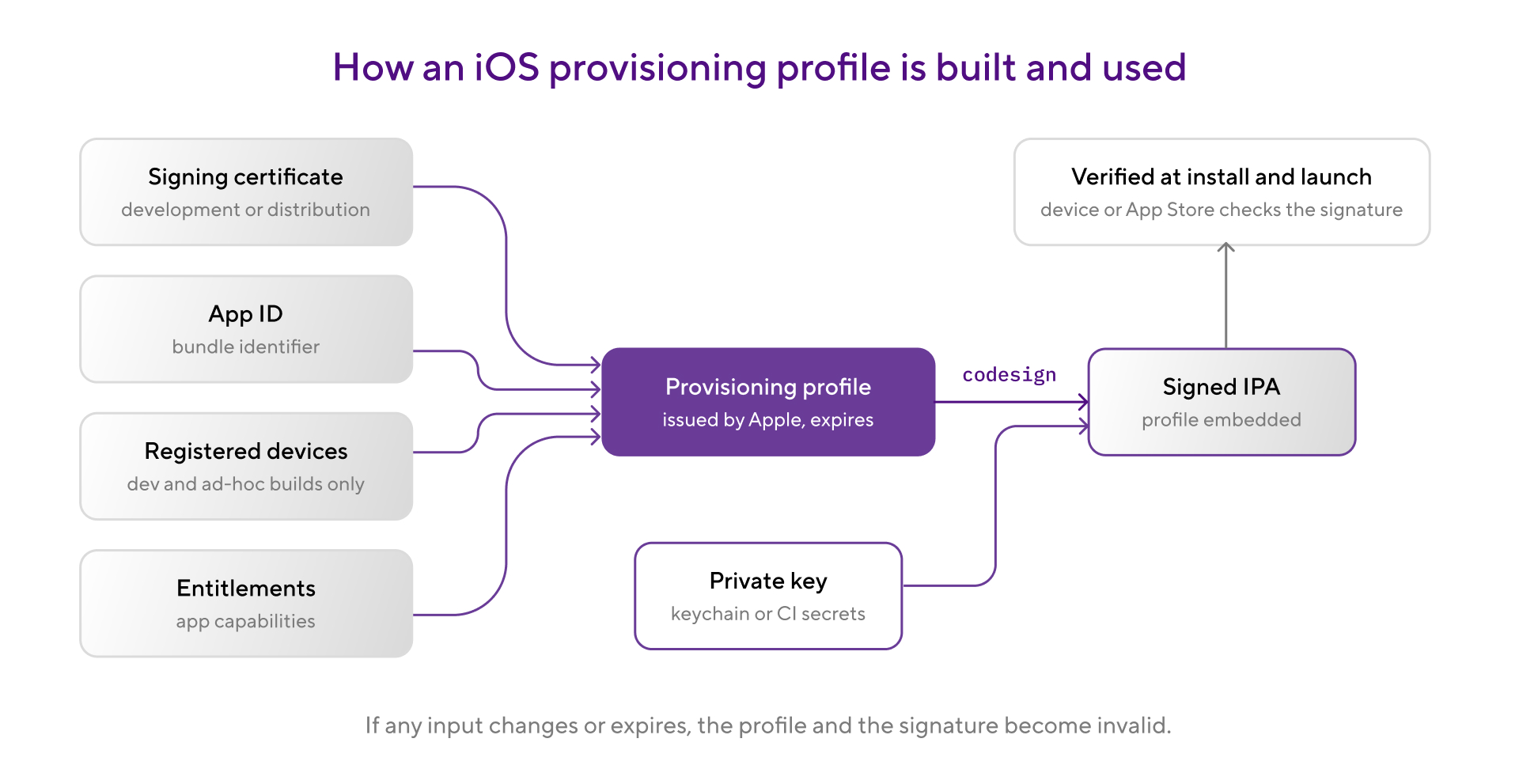
What trips people up is that iOS code signing isn't one artifact. It's a small system of interlocking pieces: a signing certificate backed by a private key, an App ID, entitlements that declare what the app is allowed to do, and a provisioning profile that bundles all of it together. Each piece can expire, get revoked, or mismatch the others. When that happens, builds fail with errors that rarely point at the real cause.
If you're new to signing in general, our code signing guide covers the fundamentals that iOS and Android share: hashing, certificates, and how the OS verifies a signature. This guide covers the Apple-specific machinery on top.
For most teams, the pain isn't understanding the model but keeping the pieces valid and available everywhere a build runs, especially on CI machines where there's no human around to click "Fix Issue" in Xcode.
How does iOS code signing work?
Five components have to line up for a signed build to succeed. Here's what each one does.
The signing certificate
An X.509 certificate issued by Apple through your developer account, paired with a private key that lives in your Mac's keychain (or your CI provider's secure store). There are two kinds. A development certificate signs builds for devices you own during development and debugging. A distribution certificate signs builds headed for TestFlight, the App Store, or enterprise distribution. The certificate is public; the private key is the secret. Lose the key and the certificate is useless. Apple's certificates documentation covers the full list of certificate types.
The App ID
A record in the Apple Developer portal that identifies your app, usually matching its bundle identifier (like com.example.myapp). The App ID is where capabilities such as push notifications, App Groups, or HealthKit get registered.
The device list
For development and ad-hoc builds, Apple requires you to register the specific devices (by Unique Device Identifier) that can install the app. App Store builds skip this; the App Store itself is the gatekeeper there.
Entitlements
Key-value declarations embedded in the code signature that state what the app can do at runtime: access the keychain, receive push notifications, share data with app extensions. The entitlements your build requests have to be covered by the provisioning profile, which reflects the capabilities you enabled on the App ID. The signature itself can be valid and the build still won't install: at install time the device treats the embedded profile as the source of truth and rejects the app if it asks for an entitlement the profile doesn't grant.
The provisioning profile
This is the piece that confuses everyone, so here's the short version: a provisioning profile is a signed file from Apple that bundles one App ID, one or more certificates, the entitlements, and (for non-App Store builds) the device list into a single document. It answers the question "is this certificate allowed to sign this app for these devices with these capabilities?" Profiles expire, typically after one year, and they invalidate whenever any component changes.
At build time, Xcode (or xcodebuild on a CI machine) embeds the provisioning profile in the app bundle, computes hashes of the app's contents, and signs them with your private key. The output is a signed iOS App Store Package (IPA). When someone installs it, the device verifies the signature chain back to Apple and checks the profile's rules before allowing the app to run.
Exporting a signed IPA in CI
On a CI machine, the export is driven by an ExportOptions.plist passed to xcodebuild -exportArchive. Here's a working example for a manually signed App Store build:
<?xml version="1.0" encoding="UTF-8"?>
<!DOCTYPE plist PUBLIC "-//Apple//DTD PLIST 1.0//EN" "http://www.apple.com/DTDs/PropertyList-1.0.dtd">
<plist version="1.0">
<dict>
    <key>method</key>
    <string>app-store</string>
    <key>teamID</key>
    <string>ABCDE12345</string>
    <key>signingStyle</key>
    <string>manual</string>
    <key>signingCertificate</key>
    <string>Apple Distribution</string>
    <key>provisioningProfiles</key>
    <dict>
        <key>com.example.myapp</key>
        <string>MyApp App Store Profile</string>
    </dict>
    <key>uploadSymbols</key>
    <true/>
</dict>
</plist>
How to save debugging time
The method for both TestFlight and the App Store is app-store (Xcode 15.3 renamed that value to app-store-connect, but the old value still works and the Xcode Steps translate it for you). TestFlight does not accept ad-hoc builds; it needs an App Store distribution signature. With manual signing, the provisioningProfiles dictionary is required and maps each bundle ID, including app extensions, to its profile name. For uploading the result, use Transporter, the App Store Connect API, or xcodebuild -exportArchive with a destination of upload in the export options. Altool still works for App Store uploads, but Apple deprecated it for notarization, which notarytool took over in Xcode 13.
Why iOS code signing matters for mobile development
Signing failures are one of the most common reasons iOS builds break in CI. Not flaky tests, not dependency issues, but signing. Search any mobile team's build history for "Code Signing Error" and you'll see the pattern. The errors are cryptic ("no profiles for 'com.example.myapp' were found"), the fix usually lives in the Apple Developer portal rather than the code, and the person who set up signing six months ago may have left the team.
The failure modes are also unusually correlated. When a distribution certificate expires, it doesn't break one developer's build, it breaks distribution for the whole team at once. Every workflow that signs for TestFlight or the App Store fails at the same moment, and binaries already signed with that certificate stop being accepted, often only discovered on release day. Day-to-day development and PR builds keep working, since they use a development certificate, but the path to the store is blocked for everyone. A revoked certificate or a profile invalidated by a teammate adding a capability has the same blast radius. Teams that practice mobile release management treat signing assets as release infrastructure for exactly this reason: an expired profile can cost you a release window just as surely as a failed App Review.
Then there's the "works on my machine" problem, which on iOS is really a "works on my keychain" problem. A developer's Mac accumulates certificates, keys, and profiles over years of clicking through Xcode dialogs. A fresh CI machine has none of that. Builds that pass locally fail in mobile CI/CD because the keychain is empty, the wrong certificate gets picked, or Xcode tries to prompt for keychain access on a machine with no one watching the screen. Making signing work reliably in CI is the difference between automated releases and a senior engineer's laptop being a single point of failure.
iOS code signing best practices
A few practices prevent most signing incidents. They're not complicated, but they need to be deliberate.
Use automatic signing for development, and let CI manage distribution signing. The "automatically manage signing" checkbox in Xcode's Signing & Capabilities tab is the right call for day-to-day development builds. It creates and renews development certificates and profiles without anyone touching the portal. For distribution, keep control: either manual profiles you manage on purpose, or a CI platform that handles provisioning against your Apple account.
Centralize one distribution certificate, don't hand it around. Apple limits the number of distribution certificates per account, and every certificate has its own private key. If each developer creates their own, you end up with a pile of certificates and nobody knows which key signs production. And anyone holding that .p12 can ship builds to the store in your company's name, so it's not something you want copied onto laptops. Keep a single distribution certificate, store its .p12 and password in your CI provider's secure storage or a secrets manager, and give as few people direct access as possible. Better still, let CI hold it and sign on your behalf so humans rarely touch the file at all. Treat it like the production credential it is.
Track expiry dates before they catch up with you. Certificates last about a year, profiles the same. Put the dates somewhere visible: a shared calendar, a Slack reminder, a dashboard. Renewing a certificate on a quiet Tuesday takes ten minutes. Discovering it expired during a release will cost you a whole afternoon and a lot more besides.
Keep signing assets out of the repo. A .p12 file plus its password is everything an attacker needs to sign software as your company. Committing certificates or profiles to git, even a private repo, spreads them across every clone and backup forever. Store them in your CI provider's encrypted code signing storage instead. It's also the first of our mobile app security best practices, and a key part of DevSecOps for mobile teams
Let your CI platform manage signing, not the build machine. Hand-maintaining keychains on build machines is the most fragile possible setup. A CI platform that stores your certificates encrypted, installs them into a temporary keychain at build time, and fetches or generates profiles automatically removes the whole category of "the build agent's keychain is wrong" failures. This isn't the same as Xcode's "Automatically manage signing": the CI platform sets up the keychain and drives signing with the assets and Apple connection you've configured, rather than leaving Xcode to create certificates on its own on an unmanaged machine.
Common mistakes to avoid: signing TestFlight builds with an ad-hoc profile (it will be rejected), adding a capability in Xcode without updating the App ID, exporting a .p12 without its private key, and letting an Apple ID session used for CI authentication expire silently (App Store Connect API keys don't have this problem; prefer them).
Manual vs automatic code signing
Xcode supports two signing styles, and the right answer depends on where the build runs and what it's for. (If you also ship on Android, the Android keystore guide covers the equivalent decisions on that side.)
Our recommendation: use automatic signing for development builds because the convenience is real and the stakes are low. For distribution in CI, either use manual signing with assets stored centrally, or use a CI platform whose automatic provisioning manages profiles against your Apple account for you. The worst setup is plain Xcode automatic signing on an unmanaged CI machine, where Xcode quietly creates certificates you didn't ask for until you hit Apple's limit.
How Bitrise handles iOS code signing
Bitrise builds run on clean macOS machines, so your signing assets need to reach the build securely each time. Signing is the step that most often breaks when teams adopt mobile CI/CD, which is why Bitrise automates certificate and profile management inside the workflow. The platform handles this with encrypted storage plus Steps that install and manage everything at build time.
You upload your signing certificates as password-protected .p12 files on the project's Code signing page, under Project settings. Bitrise stores them encrypted, and during a build, the relevant Steps download them and install them into a temporary keychain on the build machine. The keychain problem that plagues self-managed Mac agents goes away: every build starts from a known state.
For provisioning profiles, you have two options, and the iOS code signing docs cover both in detail.
Automatic provisioning is the recommended path. You upload your certificates (both development and distribution; if no development certificate is uploaded, Steps will generate one per build and you'll eventually hit Apple's certificate limit), then connect your Apple Developer account, either with an App Store Connect API key (recommended) or an Apple ID. From there, Bitrise downloads, creates, or renews provisioning profiles during the build and handles App ID and test device registration for you. The Xcode Steps have this built in: Xcode Archive & Export for iOS, Export iOS and tvOS Xcode Archive, and Xcode build for testing for iOS all take an automatic code signing input. Set it to match your connection type (api-key, for example) and the Step manages signing before it builds. If you build through fastlane, a script, or a cross-platform framework like React Native or Flutter, the dedicated Manage iOS Code Signing Step does the same provisioning work before your build tool runs.
Manual provisioning means uploading both certificates and profiles yourself and keeping them current. This is the right choice if you can't connect an Apple account to Bitrise, you manage signing files in your own way, or you sign with multiple Apple Developer accounts.
Either way, the export behavior is controlled through Step inputs, including an export options plist input you can override when you need precise control over the ExportOptions.plist, such as the multi-target provisioningProfiles mapping shown earlier. For how signing fits into the wider pipeline across iOS and Android, see our mobile CI/CD guide.
See what Bitrise can do for you
Confidently build, test, and ship high-quality mobile apps with Bitrise.
Frequently Asked Questions
What is a provisioning profile?
A provisioning profile is a signed file from Apple that bundles your signing certificate, App ID, entitlements, and (for non-App Store builds) a list of registered devices. It authorizes a specific certificate to sign a specific app for a specific distribution method. Profiles expire, usually after a year, and become invalid when any of their ingredients change.
Why does code signing fail in CI?
Usually because the build machine is missing something a developer's Mac has accumulated: the certificate's private key isn't in the keychain, the profile doesn't match the bundle ID or entitlements, or the assets have expired. CI machines start clean, so every signing asset has to be provided explicitly and kept current. Cloud-managed signing storage and automatic provisioning remove most of these failures.
What's the difference between a development and a distribution certificate?
A development certificate signs builds for debugging on registered devices; each developer typically has their own. A distribution certificate signs builds for TestFlight, the App Store, or enterprise distribution, and a team normally shares one. Both pair with a private key, and the distribution key is the one to guard carefully, much like the Android keystore on the other side of a cross-platform team.
Do I need a paid Apple Developer account to sign an app?
For anything beyond personal testing, yes. A free Apple ID can sign builds for your own devices with short-lived profiles (7 days), but TestFlight, App Store distribution, and most capabilities require the paid Apple Developer Program at $99 per year. Details are in Apple's developer support pages.
Can I sign an iOS app without a Mac?
For most teams, signing happens on macOS: Apple's signing tools ship with Xcode, and cloud CI platforms run builds on hosted macOS machines, so the signing happens there with the certificates and profiles you've uploaded or connected through your Apple account. Strictly speaking, code signing is standard cryptography, and open source tools like apple-codesign can do it on Linux, which is why some technically advanced teams run more of their pipeline there. But since Xcode is required for iOS development and already bundles every signing tool you need, macOS stays the simplest path.