An Android keystore is a password-protected binary file that holds the private keys used to sign Android apps. Every release build must be signed with a key from a keystore before it can be installed or published. Google Play uses the signature to verify that app updates come from the same developer.
What is an Android keystore?
The keystore is the foundation of Android app signing. It's a single file, usually with a .jks or .keystore extension, that contains one or more private keys plus their certificates. When you build a release version of your app, Gradle (or the Play Console, more on that later) uses a key from this file to produce a cryptographic signature. Depending on the type of key, Android devices or Google Play will check that signature to confirm the app is authentic and that an update was built by the same developer as previous ones.
One quick clarification: the keystore file used for app signing is a different thing from the Android Keystore system, a platform API your app calls at runtime to store cryptographic keys in secure hardware and one of the building blocks of mobile app security. This article covers the signing keystore; the comparison table below breaks down the difference in detail.
The stakes are real. Before Play App Signing existed, losing your keystore file meant losing the ability to ever update your app. Same package name, same listing, same users, and no way to ship version 2.0 to any of them. Google has softened that failure mode, but the keystore is still the credential that proves you are you, and it deserves the same care as a production database password.
App signing on Android is one half of a bigger picture. If you want the cross-platform view, including how iOS handles the same problem, start with our guide to code signing.
A keystore is Android's half of the code signing story. Our code signing guide explains the shared model: a private key signs a hash of the app, and the OS verifies it against a certificate. This guide covers what's specific to Android: keystore files, Gradle signing configs, upload keys, and Play App Signing.
How does an Android keystore work?
A keystore wraps your signing keys in two layers of protection: a password for the file itself, and a password for each key inside it (in the newer PKCS12 format, the two passwords are the same value). Each key also gets an alias, a short name you use to refer to it in build configs. You need all three pieces (keystore password, key alias, key password) to sign anything.
You generate a keystore with keytool, which ships with the JDK:
keytool -genkeypair -v \
  -keystore upload-keystore.jks \
  -alias upload \
  -keyalg RSA \
  -keysize 2048 \
  -validity 10000
This creates upload-keystore.jks containing a 2048-bit RSA key under the alias upload, valid for 10,000 days. The tool prompts you for a password and some identity fields. One quirk worth knowing: since JDK 9, keytool creates PKCS12 keystores by default, even when the filename ends in .jks, and PKCS12 uses a single password for both the file and the keys inside it. Android Studio offers the same thing through a wizard (Build > Generate Signed App Bundle / APK), but the CLI version is easier to script and document.
To sign release builds automatically, you wire the keystore into Gradle with a signingConfigs block. Never hardcode the credentials, and never check them into version control. Read them from environment variables or a properties file that Git ignores instead:
// build.gradle.kts (module level)
android {
    signingConfigs {
        create("release") {
            storeFile = file(System.getenv("KEYSTORE_PATH") ?: "keystore-not-set")
            storePassword = System.getenv("KEYSTORE_PASSWORD")
            keyAlias = System.getenv("KEY_ALIAS")
            keyPassword = System.getenv("KEY_PASSWORD")
        }
    }
    buildTypes {
        release {
            signingConfig = signingConfigs.getByName("release")
        }
    }
}
Be careful where those values live, because "read from gradle.properties" hides a trap. The project-level file (./app/gradle.properties) sits inside the repo, so anything you put there gets committed and your keys leak the moment you push. The global file at ~/.gradle/gradle.properties stays out of Git, but every Gradle project you run on that machine can read it, so only use it if you trust them all. For local development, local.properties is usually the safest home: it's app-specific and Android tooling keeps it out of version control by default (confirm it's in your .gitignore). A common pattern reads the environment variable first and falls back to local.properties, so the same setup signs on CI and on a laptop without hardcoding anything.
With this in place, ./gradlew bundleRelease produces a signed Android App Bundle (AAB) and assembleRelease produces a signed APK. The signing mechanics differ slightly: AABs use jarsigner-style JAR signing, while APKs use the APK Signature Schemes (v1 JAR signing plus v2 and up, depending on your minSdk), the same schemes the standalone apksigner tool applies. Gradle handles the right one for you, and that same config runs unchanged in your mobile CI/CD workflows.
Then there's Play App Signing, which splits signing into two keys. Your keystore holds the upload key, which signs the AAB you upload to the Play Console. Google verifies that signature, strips it, and re-signs the app with the app signing key, which Google generates and stores for you. Devices only ever see the app signing key's signature. Play App Signing is mandatory for all new apps on Google Play, which have had to publish as AABs since August 2021.
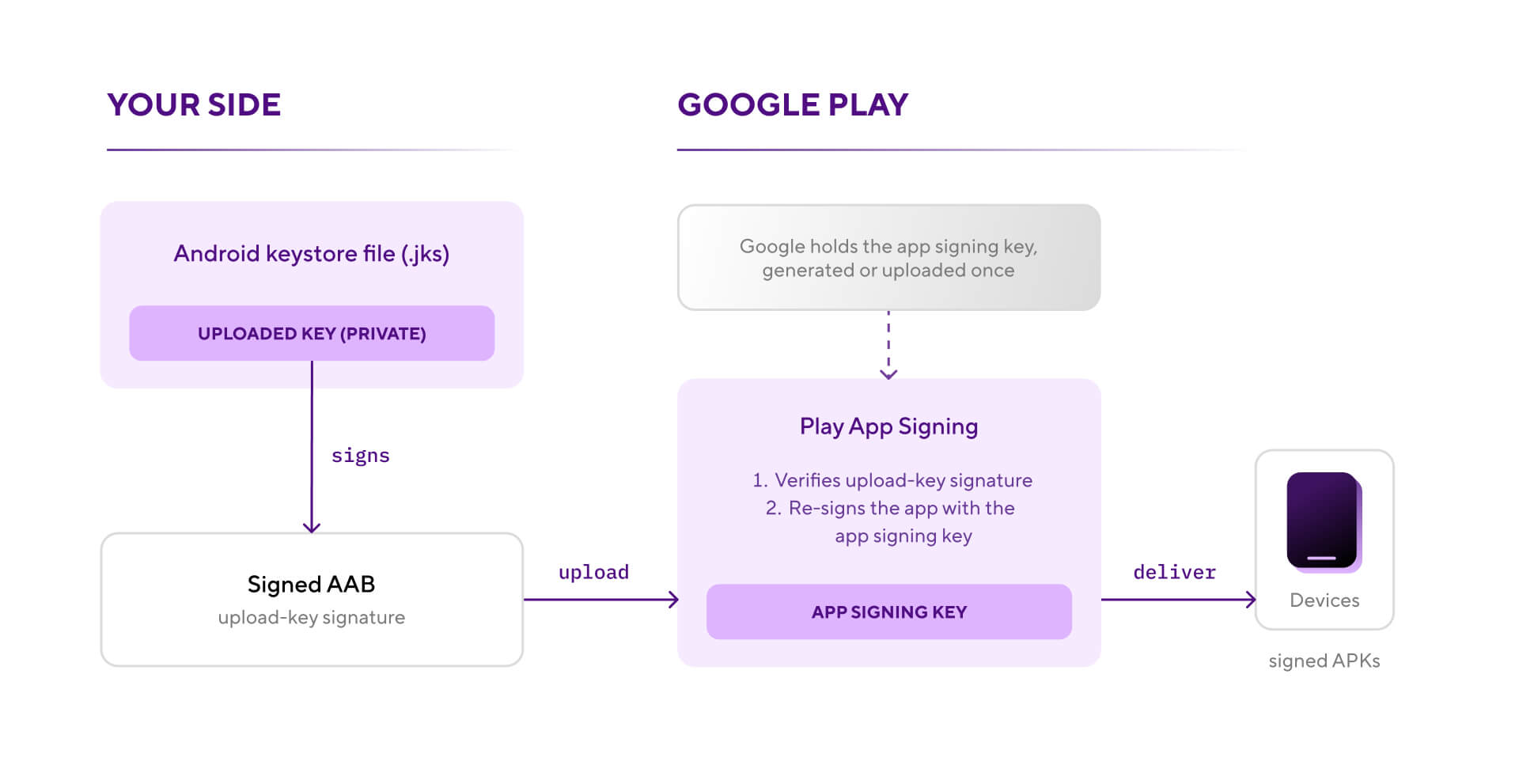
The split matters because it changes what "losing the keystore" means. The upload key is replaceable; the app signing key, held by Google, is the one users' devices trust. Google's app signing documentation covers the full key hierarchy.
Why the Android keystore matters for mobile development
A lost keystore used to be a career story. Developers who misplaced the file (or forgot the password, which amounts to the same thing) had to publish their app as an entirely new listing: new package name, zero installed base, zero reviews, and every existing user stranded on an un-updatable version. Stack Overflow is full of these post-mortems, and there was no fix. Google could not help because Google never had the key.
Play App Signing changed the risk model. Since Google holds the app signing key, a compromised or lost upload key is now an inconvenience instead of a catastrophe: you request a reset, register a new upload key, and keep shipping. But the model only protects you if you've enrolled, and apps still distributed as APKs outside the Play Store carry the original all-or-nothing risk.
The keystore is also, in our experience, the single most common hurdle in Android CI setup. The file can't live in the repo, the passwords can't live in the build script, and the build agent still needs all of it at signing time. Getting that handoff right (secure storage, environment variables, correct paths) is where most first CI builds fail. It's also a recurring source of release-day surprises: sign a build with the wrong keystore and Google Play rejects the upload with a certificate fingerprint mismatch, while sideloaded users see "App not installed" because Android refuses updates whose signature doesn't match the installed version. A clean release management process treats the keystore as a first-class artifact, not a file someone keeps on their laptop.
Android keystore best practices
A few practices prevent nearly all keystore pain:
Enroll in Play App Signing and let Google hold the app signing key
It's mandatory for new AAB-based apps anyway, and for older apps it converts a fatal single point of failure into a recoverable one. Opt in under Protected with Play > Play Store distribution > Go to Play app signing in the Play Console.
Always keep the upload key out of the repo
A keystore in Git history is compromised forever, even if you delete it later. Store the file in your CI provider's encrypted file storage (on Bitrise, the Code signing tab) or a secrets manager like HashiCorp Vault, AWS Secrets Manager, or 1Password, and inject it at build time. This is standard DevSecOps hygiene: secrets live in one audited place, not scattered across laptops.
Don't lean on separate keystore and key passwords for security
JKS lets you give the file and each key different passwords, so in theory leaking one still leaves the other in the way. In practice they leak together: the same script or CI config supplies both, so a slip that exposes one almost always exposes both. That's part of why the modern PKCS12 format (the JDK 9 default) settles on a single password, and keytool ignores a separate -keypass with a warning. Use one strong password, keep it out of build logs and committed files, and record it in your team vault, where most tools (including the Bitrise Code signing tab) still ask for both fields even when the value is the same.
Document the alias and both passwords in your team vault
The most common way teams "lose" a keystore is that the one person who knew the password leaves. The file, the alias, both passwords, and the SHA-256 certificate fingerprint belong in shared, access-controlled storage with at least two people holding access.
Know the recovery path before you need it
If your upload key leaks or goes missing, generate a new key, then have your developer account owner request an upload key reset through the Play Console help form, registering the new key's certificate (a .pem export from keytool).
Shipping on Apple platforms too? iOS code signing works differently enough that it's worth understanding both.
The reset takes effect once Google's support team registers the new key, so expect a short waiting period. Compare that with the pre-Play App Signing world, where the same incident ended the app. The difference is the whole argument for practice #1.
Verify before you upload
keytool -list -v -keystore upload-keystore.jks shows the aliases and certificate fingerprints inside a keystore file. Thirty seconds of checking beats a rejected Play Console upload, especially when a team juggles separate keystores per flavor.
Keystore file vs Android Keystore system
The name collision causes endless confusion, so here's the direct comparison. They share a word and nothing else.
How Bitrise handles Android keystores
Bitrise treats the keystore as managed, encrypted project configuration rather than a file you have to smuggle into builds yourself.
You upload the keystore file once, on the Code signing tab under your project settings (Android tab, Add keystore file), along with three credentials: the keystore password, the key alias, and the private key password. Bitrise stores the file encrypted and exposes it to builds through a set of environment variables:
- BITRISEIO_ANDROID_KEYSTORE_URL: a time-limited, read-only download URL for the file
- BITRISEIO_ANDROID_KEYSTORE_PASSWORD
- BITRISEIO_ANDROID_KEYSTORE_ALIAS
- BITRISEIO_ANDROID_KEYSTORE_PRIVATE_KEY_PASSWORD
You can upload multiple keystores (say, one per product flavor); each additional file gets numbered variables like BITRISEIO_ANDROID_KEYSTORE_URL_1, or you can assign a custom ID so the variable name reflects the app it belongs to.
From there, you have two ways to sign. The simplest is the Android Sign Step: add it to your workflow after the Step that builds your APK or AAB (typically Android Build or Gradle Runner), and it automatically picks up the keystore variables, downloads the file, and signs the artifact. It uses apksigner for APKs (choosing signature schemes based on your app's min and max SDK versions) and jarsigner for AABs. The signed output then flows into whatever comes next, such as the Google Play Deploy Step or Deploy to Bitrise.io.
The second option keeps signing in Gradle. If your signingConfigs block reads credentials from environment variables, like the Kotlin DSL example earlier, you point it at the Bitrise-provided variables, use the File Downloader Step to fetch the keystore from $BITRISEIO_ANDROID_KEYSTORE_URL to a known path, and your existing bundleRelease task signs the build with no extra Steps. This is handy when you want local builds and CI builds to share the exact same signing logic.
Either way, the keystore never enters your repository, the passwords never appear in your bitrise.yml, and rotating credentials means updating one tab instead of hunting through scripts. The full setup is documented in the Android code signing guides on Bitrise docs.
See what Bitrise can do for you
Confidently build, test, and ship high-quality mobile apps with Bitrise.
Frequently Asked Questions
Where is my Android keystore stored?
Wherever you saved it when you created it; Android doesn't pick a location for you. If you used the Android Studio wizard, check the path you entered in the Key store path field. The debug keystore is the exception: Android tooling auto-generates it at ~/.android/debug.keystore.
What happens if I lose my keystore?
If you're enrolled in Play App Signing, you've lost only the upload key: request an upload key reset through the Play Console help form, register a new key, and continue releasing. If you're not enrolled and the lost key is your app signing key, there's no recovery; you'd have to publish under a new package name and lose your install base. That asymmetry is why enrolling is best practice #1 above.
What's the difference between the keystore password and the key password?
The keystore password unlocks the file, whereas the key password unlocks an individual key inside it. One file can hold several keys, each with its own alias and password. Tools and CI systems (including the Bitrise Code signing tab) ask for both, so keep both recorded in your team vault, even if you set them to the same value.
Is the debug keystore different from a release keystore?
Yes, completely. The debug keystore is auto-generated with a well-known password (android) and exists only so debug builds are installed without ceremony. Google Play rejects anything signed with it. Your release keystore is unique to you, secret, and the one this whole article is about. iOS draws a similar line between development and distribution signing if your team ships both platforms.