Over-the-air (OTA) updates let you fix a bug in your React Native app and get it to users the very same day, without waiting for App Store or Google Play review. That speed is why teams adopt OTA. It’s also where things can go wrong: push a JavaScript bundle to the wrong app version and a small bug becomes a crash.
In this blog, we cover what you can do to keep OTA releases safe, from deciding how much to rely on OTA, to targeting the right app versions, rolling out gradually and recovering when something slips through.
New to OTA? Start with what OTA updates are and how they work.
Still choosing a tool? Compare your CodePush options.
Decide your OTA update strategy
The first thing your team needs to decide, is how much they are going to rely on using OTA updates. OTA updates give you more control over deployment than the app stores’ release model allows. But they also add complexity to your release process, and every team has trade-offs to weigh. Work out where you sit on this spectrum, and invest in your process to match:
- Hotfix-only: set up OTA, but ship through regular store releases most of the time. Save OTA updates for critical bug fixes and emergencies. Our hotfix guide covers when a fix should skip the queue.
- More frequent releases: keep your store release cadence, and ship OTA releases in between. You deploy more often without the overhead of extra store releases.
- Continuous deployment: ship JavaScript-only changes often, with an occasional store release for changes to the native side.
Whichever you choose, know what you’re allowed to ship. Read what the App Store and Google Play allow in OTA updates.
Target compatible app versions
OTA updates can only change the JavaScript side of a React Native app. But when you test and verify an app build, you also make assumptions about its native code: that a native module is present, what a function’s signature looks like, which library versions are installed. This link between the JavaScript and native sides is easy to forget, so regressions can slip through testing. Running a new JavaScript bundle against an older app version can cause mismatches that end in app crashes. That’s why each OTA update needs to target the native app versions it’s compatible with.
CodePush has the concept of a target version for each update. When checking for updates, the SDK only installs updates that satisfy this constraint. The target can be a single version (1.3.65) or a version range like >=2.0.0 <=2.2.25.
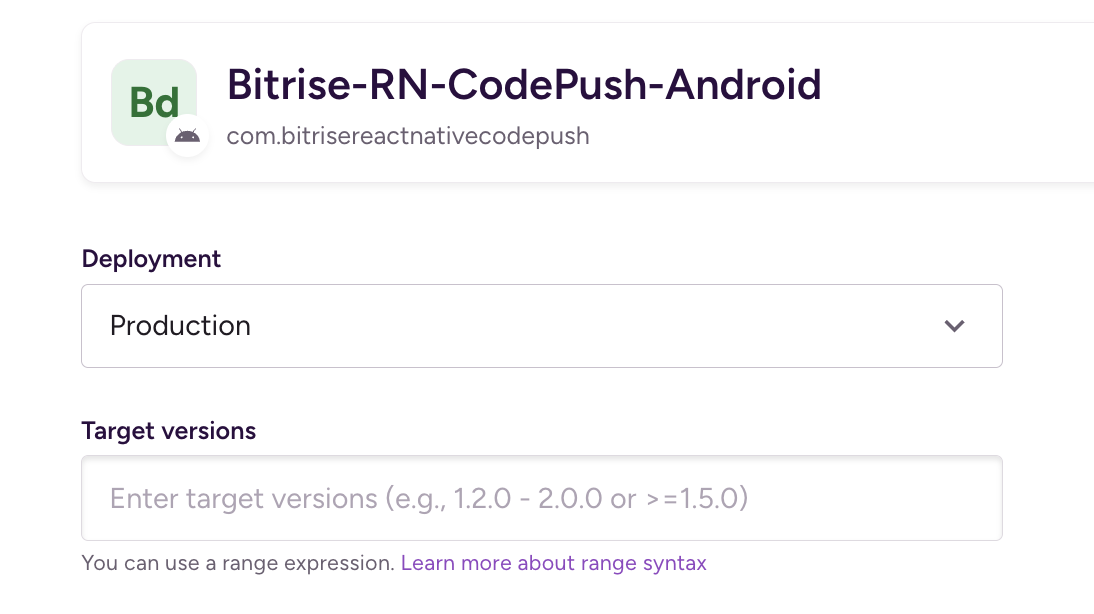
Always use semver app versions when targeting app versions
Non-semver values can be incorrectly parsed, leading to silent failures, or worse, incorrect update targeting.
Prefer a closed range with an explicit upper bound
An open-ended range like >=1.2.0 doesn’t only mean “1.2.0 and the versions I know about today”. It also matches every future app version, forever, until you push a new CodePush update. This detail is easy to overlook, and it can cause runtime crashes at unexpected times, because the problem shows up long after you set the target.
Target an explicit version unless you have a good reason to use a range
A single version is easier to check for compatibility and easier to reason about. Version ranges are flexible, but they need more safeguards and care.
Choose between silent and immediate installs
By default, OTA updates are installed in the background and take effect on the next app launch. Most OTA implementations also offer an immediate install mode that interrupts the user flow and reloads the JavaScript-side of the app from the updated package.
There are trade-offs with both approaches and the choice highly depends on the nature of the app, as well as team priorities.
Install quietly on next launch by default, and save immediate installs for critical fixes
By default, CodePush checks for updates when the app launches, downloads them in the background and activates them on the next launch.
Only surface a user-facing errors for a failed install when it was a mandatory update
Any other update happens in the background and can be retried later. Immediate install flow UX: make it clear to the user what is happening (e.g. a progress indicator) and why (this is a mandatory update, contains important bug fixes)
Offer a manual update button in Settings or a similar screen
It helps advanced users, and it makes troubleshooting and customer support easier.
Never block app launch on update check or download.
Offline devices would get stuck on the splash screen, while users on a weak network connection could wait for minutes.
Set up deployment channels and automation
Use different deployment channels to test multiple versions in parallel. Besides the production deployment, you can run parallel deployments for scenarios like:
- A debug deployment for manual and ad-hoc debugging
- Internal testing, QA
- Deploy and preview PRs on devices with a dedicated deployment channel
Only publish to production from CI workflows or other locked-down environments you can audit
For other deployments, such as an ad hoc debug one, updating from the CLI is convenient. Just make sure access control is set up properly, so only the right people and systems can update production.
Use the REST API for automations when a CLI isn’t a good fit
Don’t forget that most actions can also be performed with a REST API. Bitrise and its CodePush REST API is documented here.
Roll out gradually
Start with a small percentage of users, then increase it step by step
For example, release to 5% of users, check your metrics, then expand to, for example, 25%, 50%, 100%, waiting a fixed amount of time between steps.
Watch crash metrics, plus OTA update and rollback metrics, at every step
Decide before you start what will pause or stop a rollout, such as a drop in your crash-free rate or a rise in automatic rollbacks.
Gradual rollouts are well covered in engineering writing beyond mobile. Learn from the common strategies and other teams' mistakes, and adopt what fits mobile apps and your team's priorities.
Monitor every update
Send OTA-related errors to the crash reporting tool your app already uses
A gradual rollout only works if you can spot problems early, and keeping OTA errors next to your other crash data means you see everything in one place.
Add update lifecycle events to your crash reports and telemetry
For example, the CodePush SDK lets you listen for update-related events. This snippet records each update status as a breadcrumb, so a crash report shows what the update process was doing at the time:
codePush.sync({}, (status) => {
  telemetry.addBreadcrumb({ category: "codepush", message: String(status) });
});
Decide when to roll back and when to roll forward
Remember that every rollback has to be undone
When monitoring shows a serious problem, you can roll back to the last version that worked, or roll forward by shipping a new update with the fix. Rolling back is tempting, but the rollback has to be reverted eventually, to get back to the latest state of your codebase.
Roll forward when you can
Doing a direct roll-forward generates less cleanup work, and is more practical if the fix is already validated and available to quickly roll out.
Be careful of rolling back code changes that assume a certain app state
A database schema upgrade is a common example. In some cases, rolling forward is the only practical option.
Secure your updates
Sign your OTA updates
OTA updates change the code running on your users' devices, so treat them as carefully as a store release. Code signing adds a digital signature to each update. The app uses it to check that the update came from a trusted source and wasn’t changed in transit.
Protect the signing private key as carefully as your native signing certificates and keys
If the key is compromised, an attacker could run code remotely with your app’s permissions and access to user data.
Keep an audit log of rollouts and deployment changes
Rollouts are high-impact changes, so keep a record of what changed, when, and who changed it.
Optimise your bundles
Small updates help your users and your bill
Users on metered connections use less data, and updates install faster. If your OTA provider bills by data transfer, your team saves money too.
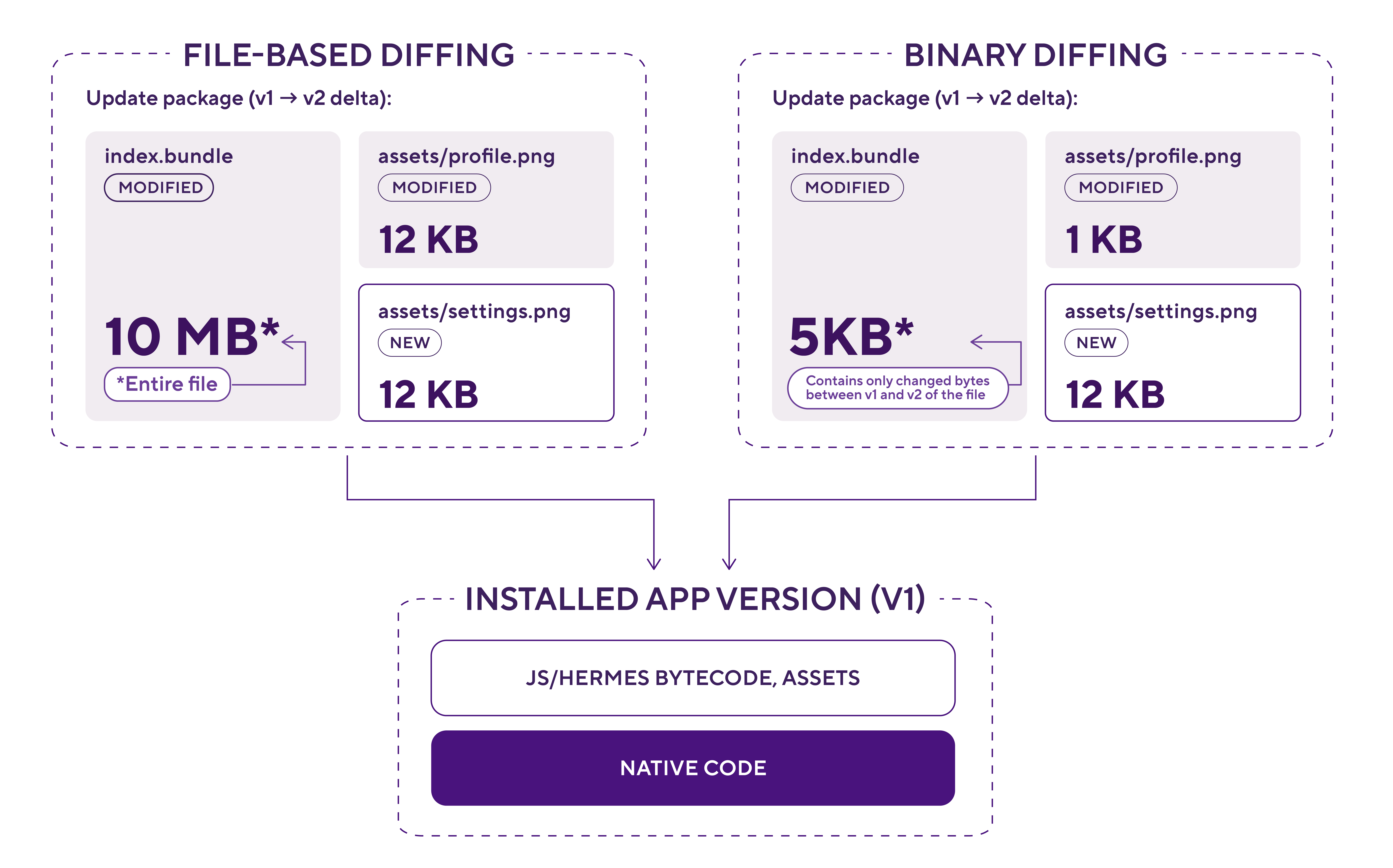
Use delta updates
Updates deployed via CodePush typically only change a small portion of the app’s code, so downloading and installing the entire bundle is inefficient. Most OTA update solutions compute delta updates between your package versions automatically, so only the changes are downloaded and installed.
Use this delta update mechanism, and understand in which scenarios deltas are generated automatically and when users still download the full package. To see how we added delta updates to Bitrise CodePush, read what's new in Bitrise CodePush.
Your OTA release checklist
OTA updates are only as safe as the process around them. Target carefully, roll out in small steps and keep an eye on your crash rate, and you can ship fixes in minutes without gambling on production. Here’s a checklist you can use to stay on top of your OTA releases.
- Decide how you’ll use OTA: hotfixes only, releases between store versions, or continuous deployment
- Target explicit app versions using semver, and avoid open-ended version ranges
- Install updates quietly on next launch, and save immediate installs for critical fixes
- Never block app launch on an update check
- Only publish to production from CI workflows, with access locked down
- Roll out to a small percentage first, and watch crash and rollback metrics before you expand
- Roll forward with a validated fix where you can, and roll back when you have to
- Sign your updates, and protect the signing key like a native signing certificate
Get started with CodePush today
Bitrise CodePush gives you staged rollouts, one-click rollback, delta updates and code signing on every plan, and it’s free for up to 100,000 monthly active users.
Get started for free
Get a 30-day free trial and join the 400,000+ mobile developers who already love Bitrise.
Start free trial