

At WWDC 2026, Apple shipped a long list of changes, and we covered the ones flying under the radar in our round-up of the less-reported announcements. One of them deserves a closer look on its own: the way Xcode 27 reshapes how developers manage devices and simulators.
Xcode 27 ships with a new app called Device Hub, replacing Simulator.app found in older Xcodes. Device Hub is where both physical devices and simulators can be managed from now on. devicectl (Apple's existing CLI for managing physical devices) has also been extended to manage simulators through the same unified interface. That extension is what makes this interesting for CI/CD.
This post aims to build on what was shared in WWDC 2026 session "Explore Device Hub" by providing an original analysis of what devicectl's new simulator support means for automation workflows.
What Device Hub gives you in the local dev env
Before getting into automation, it's worth understanding how Device Hub helps in everyday local workflows because the GUI surface maps almost directly to what's scriptable via devicectl. For a full walkthrough, watch the WWDC session. If you don't have the time, here's a brief overview.
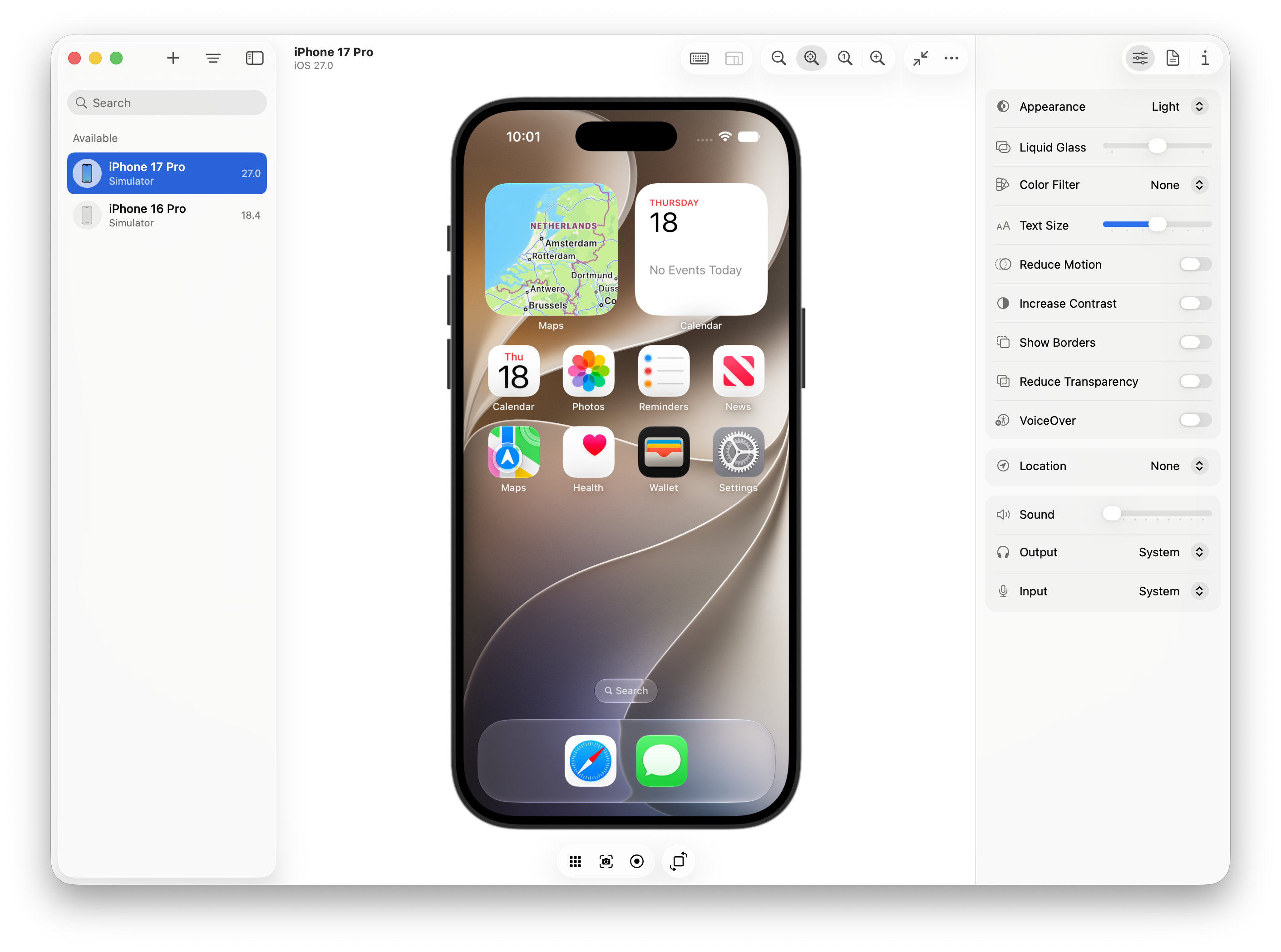
Device Hub is bundled with Xcode 27 but also runs standalone. The interface has three main areas:
- Sidebar with your full device and simulator inventory.
- Canvas with a live interactive view of any device's screen.
- Inspector with five panels covering settings (dark mode, text size, simulated location), diagnostics (crash logs, spins, hangs), device info, app management including data containers, and profiles.
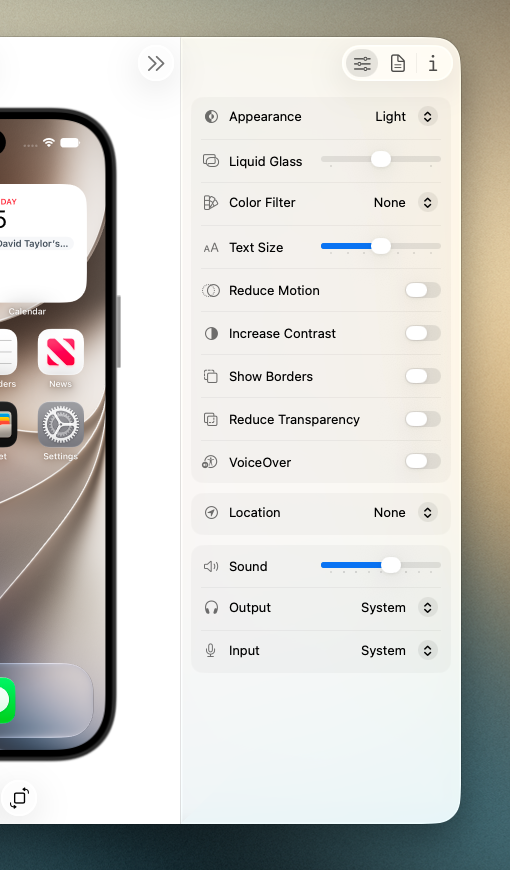
Settings changes in the inspector take effect instantly, without navigating through the device's own Settings app. That sounds like a small convenience, but it matters: a developer in the WWDC session tracked down a UI bug that only reproduced with landscape orientation, a specific simulated location, and large text size. Previously this would have taken several minutes to configure manually. In Device Hub it took seconds to mirror each setting from the original device.
Beyond the local loop
Most of what devicectl can now do with simulators, simctl has been able to do for years. What's new is that devicectl now uses the same interface for both physical devices and simulators, so we can have scripts that work against a real iPhone in the local dev loop and against a simulator in CI without branching.
The most immediate use of devicectl in CI is enforcing a consistent simulator configuration before every run. Rather than relying on whatever state a simulator happens to be in, a setup step can lock in exactly what your tests expect.
There are some new capabilities for simulators (not previously available via simctl) which are detailed in the next section. For everything else, the devicectl path just gives you consistent syntax and --json-output support across both device types.
The script below shows what a shared setup script might look like:
#!/bin/bash
# pre-test-setup.sh — works against a physical device or a booted simulator
set -e

# Resolve the UDID by device name; works for both device types
# --json-output requires a file path; use a temp file and clean up
TMPFILE=$(mktemp)
devicectl list devices --json-output "$TMPFILE"
UDID=$(jq -r '.result.devices[]
    | select(.deviceProperties.name == "iPhone 16")
    | .hardwareProperties.udid' "$TMPFILE")
rm "$TMPFILE"

# Appearance — already possible with simctl ui appearance, now unified
devicectl device settings appearance --device $UDID --mode dark

# Location — already possible with simctl location, now unified
devicectl device simulate location coordinate --device $UDID \
  --latitude 51.5074 --longitude -0.1278

# Orientation — new for simulators, not previously available in simctl
devicectl device orientation set --device $UDID landscapeLeft

# Biometrics — new for simulators, not previously available in simctl
devicectl device settings biometrics --device $UDID --enable
What's under the hood
Device Hub manages both physical devices and simulators. On the tooling side, both the old simctl and devicectl commands are still available, but devicectl can now manage simulators as well.
This is an interesting addition because the two CLIs have a largely overlapping feature set but are not completely the same. What's interesting are the commands which are only available in devicectl and previously only worked with a physical device.
The following are the devicectl commands without equivalent simctl commands or flags:
Beta caveats
Xcode 27 is in early beta as of this writing, and several devicectl simulator capabilities don't yet work. The commands exist and are documented, but return errors when run against simulators:
device copy to/from(app data containers, crash logs)device info filesdevice info lockStatedevice profile install/list/remove/validate
All of these work correctly against physical devices. Our expectation is they'll be resolved in later betas, the unified architecture is clearly the direction Apple is heading.
For anything that isn't working via devicectl on simulators today, simctl remains fully functional. The two tools can be used alongside each other in the same workflow script.
What to try next
Download Xcode 27 and take Device Hub for a spin locally first. The inspector panels give you a good mental model for what devicectl is doing when you use it in scripts.
The WWDC session is worth watching if you want a guided tour of the UI before diving into the CLI.
If you're running iOS tests on Bitrise, a good first experiment is adding a Script step before your test step that calls devicectl to lock in your simulator configuration. Even just enforcing a consistent text size and locale will catch a class of bugs that default simulator settings silently miss.
Get started for free
Get a 30-day free trial and join the 400,000+ mobile developers who already love Bitrise.
Start free trial