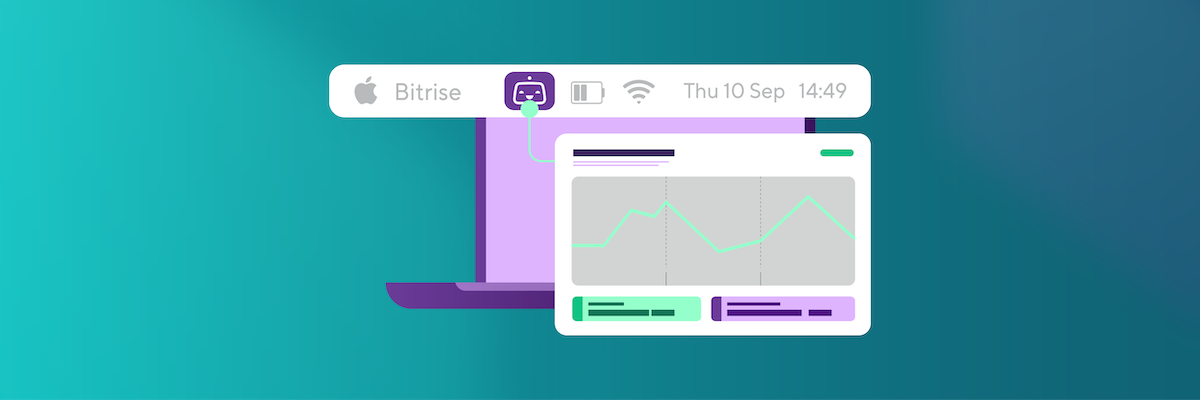
Introducing the Bitrise Desktop App; a small native app that lives in your macOS menu bar and shows the live status of your builds in the one spot you already glance at all day. There's nothing to open, refresh, or check: the status of your builds is right there for you to glance at. Meaning you can push builds, keep coding, and look up only when something needs you.
Available today for macOS:
Why we built the Bitrise Desktop App
Here’s a scenario I’m sure you’re all too familiar with. You push the branch and the build kicks off, set to take twelve minutes. Great. After four minutes you check its status then switch back to your editor. A minute later reach for the browser tab again, the build isn’t finished so you go back to work. A few minutes later you reach for that same tab yet again, and it’s still building. None of that checking makes the build finish any sooner, however, it does chip away at your focus, one glance at a time.
“But I have a Slack channel that posts my build results, and the PR shows checks anyway.”
I hear you, you might be thinking you’ve already solved this, however, in practice neither quite solve the problem for you. Getting Slack (other chat tools are available) to notify you about only the right builds means allowing some channels, muting others, and tuning settings that you have to keep maintaining, and even then your build results likely land in a channel full of everyone else's results too. One more ping to sift through in a workspace that's already full of them. The PR tab has the opposite problem, it only helps while you're sitting on it, and finding it among a dozen other git tabs is its own little task. Between "I pushed" and "I found out," that's where the tab-hunting and the channel-scanning happen.
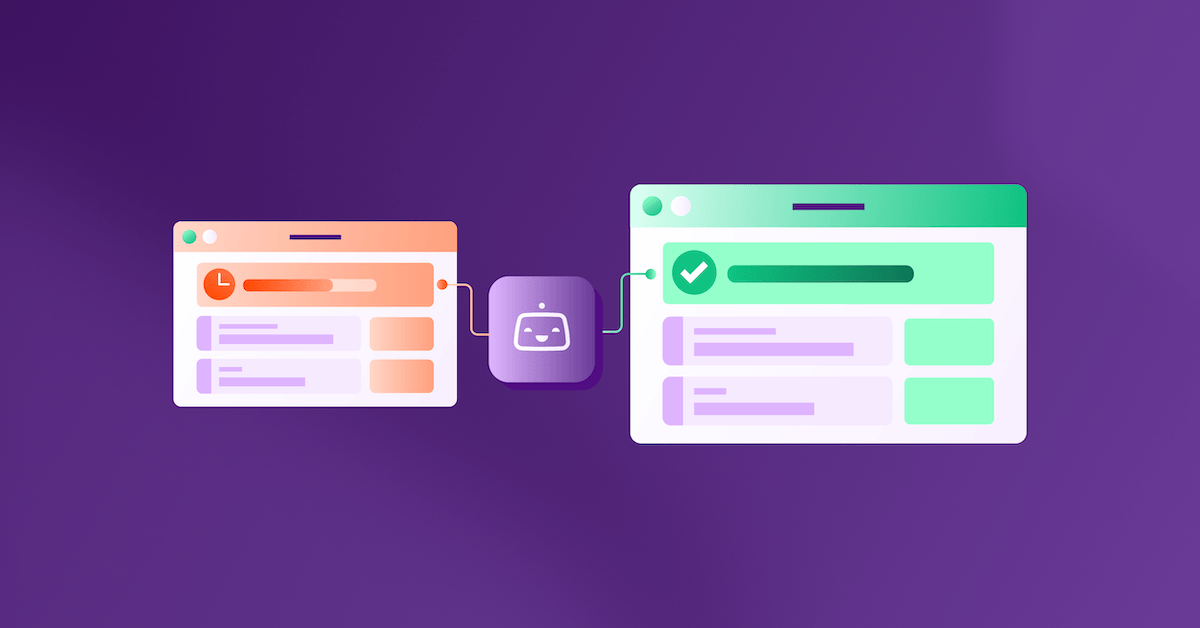
With the Bitrise Desktop App both scenarios are solved it. It does the checking so you don't have to, in the one spot you already glance at all day, with no channels to tune, no tabs to hunt, and nothing to maintain, whatever editor you use.

Watch it in action
Senior Product Manager Kaushal Vyas walks through the Bitrise desktop app, showing you how to rescue your focus from endless browser tabs.
How you'll use the Bitrise Desktop App
Glance instead of checking
A small colored dot sits on the Bitrise icon in your menu bar and tracks the most recently started build across everything you watch, runs in progress included. Green passed, red failed, purple running, gray aborted. You'll know "is it done yet?" without it ever being a task you perform.
Follow the branch you're working on
Point the app at a local project folder and it reads the git remote, matches it to the right Bitrise project, and shows builds for whatever branch you have checked out. Switch branches and the app switches with you. Turn on "show only builds since the last push" and older runs drop out of your list.
Keep an eye on main
Following a folder tracks your branch; subscribing to a project pins it in view no matter what you have checked out. Do both at once for the same project: one watch on your current branch, another on main, side by side. If you're the person who gets pinged when the shared branch goes red, you'll know before anyone messages you.
Track every project you touch, on your terms
Point the app at a parent folder and it scans for git repositories so you can add everything in one step. Then set notifications per project: off for the noisy experiment, failures only for the app you're shipping, every completion for the release you're watching closely. A global switch mutes it all when you need quiet.
Act on the result in one click
Open the popover and every build is a full card: status, commit message, branch, workflow, duration. Red build? One click opens it in Bitrise where the log is. Green build from a pull request? Jump straight to the PR to merge. No PR, like a push straight to a branch? The commit link takes you there instead.
“I love it. I'm so glad you made it. I find it really handy because it's right there for me to see. I can literally just have a glance to stay up on top of what's going on as opposed to having to go to a different screen, a different window in Safari and try to intentionally check on it.”
A thrilled Bitrise Desktop App user
Stop checking. Start shipping.
As you saw in the walkthrough above, setup takes about a minute.
- Download the app and drag it to Applications.
- Sign in with your browser.
- Choose your workspace, then add a project directly or point the app at a local folder and let it match automatically.
From there, your build status lives in the menu bar. The build won't run any faster, but you'll get your attention back, and your green builds stop going by unnoticed.
We're already working on what's next. So stay tuned, there’s more coming soon.
Get started for free
Get a 30-day free trial and join the 400,000+ mobile developers who already love Bitrise.
Start free trial