
Repo-stored and modular bitrise.yml, loaded, edited, and saved from the Workflow Editor
Second in a series on authoring config in the Bitrise Workflow Editor.
Most CI tooling makes you pick a side. Visual editing or code. Git as your source of truth or a decent place to edit. A config small enough for one file, or a modular structure your tooling flattens the moment you touch it.
The Bitrise Workflow Editor does not ask you to choose. It meets your config where it lives.
One file or forty, stored on Bitrise or in your repo. This post covers both, in that order.
One bitrise.yml, in your repo
If your bitrise.yml lives in the repository, the editor now works with it directly. It loads the config from your repo, on the branch you are working on, and when you save it, it commits back to Git. No copy-paste round trip, no leaving the browser to push the change.
Here is the full round trip.
Loading your config from a branch
The editor reads bitrise.yml from your repository rather than from a copy held on Bitrise. Pick the branch you are working on and you are editing that branch's configuration, which means a config change can travel with the feature branch it belongs to.
Editing it like any other config
Everything from the first post in this series applies here: the same autocomplete, the same contextual documentation, the same validation that catches a workflow reference that does not resolve, the same navigation across your config. Repo-stored config stops being a downgrade. You get the full editing experience and you keep Git as your source of truth.
Saving back to the same branch
The common case: you loaded from a branch, you edit, you save, and the change is committed straight back to that same branch. No download, no paste, no separate push. The config in your repository is the config you just edited.
Saving to a new branch
Plenty of teams do not commit directly to a working branch, and config changes go through review like everything else. Saving to a new branch means an edit made in the editor can become a pull request, reviewed by the people who own that pipeline, before it affects anyone's builds.
This is the flow that matters most if your team treats CI config as code. It is the one that makes the editor usable inside a review process rather than around it.
Updating Git yourself
Sometimes the editor cannot write back, or your team would rather it did not. For those cases the editor hands you the change instead of committing it: download the changed version, or copy the changed configuration, and apply it through whatever process you already use.
When one file is not enough
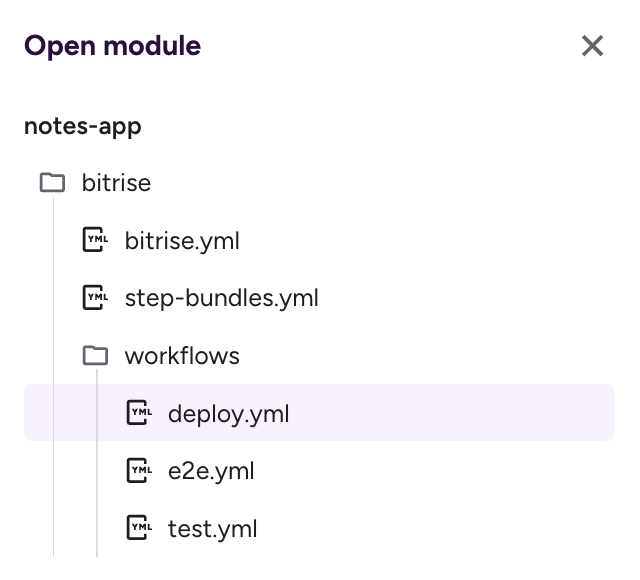
Past a certain size, one file stops being the right shape. A monorepo running several backend services ends up with a test workflow that three of them share, deploy pipelines that differ per service, and a root file holding it together. Splitting that across modules is how teams keep it reviewable and keep ownership clear:
format_version: "25"
default_step_lib_source: https://github.com/bitrise-io/bitrise-steplib.git

include:
  - path: modules/test.yml
  - path: modules/deploy.yml
Two views: merged and module
Modular editing introduces two concepts.
The merged view: what will actually run
The Merged config view is your full configuration, assembled and fully resolved: every workflow, pipeline, step, and container in one place. It is what will actually run. It is also read-only by design, so that every change stays traceable to the module that owns it.
Builds run from the merged view only. A single module is usually an incomplete slice of the config, since another file may add steps or change triggers, so running from a module could execute something different from what is on your screen. Running from merged guarantees that what runs matches what the configuration actually is.
The module view: where you edit
A module view is a single file, and it is where you edit. An Open module picker lists the config's files as a tree that mirrors your repo, grouped by source, with the working repo on your current branch as the editable group. Files open into a tab strip, with the merged config pinned first.
Working in a module is identical to editing a single bitrise.yml today: full create, read, update, and delete on the entities that file defines. Entities the file only references appear as read-only cards, so you can see them in context and jump to wherever they are actually defined to change them.
Language server and Modular YAML
Navigation connects back to the language server. Jump to definition works across module boundaries: from a reference, it opens the module and the repository where that entity actually lives. When something is defined in more than one file, a chooser shows you the layers in merge order, so you can see which definition wins rather than reasoning about it from memory.
Pickers draw from the whole configuration too, so a workflow defined in one module can be referenced from another without you needing to remember where it came from.
The same save to repository, across many files
The save flows above work the same way when your config spans modules, with one addition: a single save pushes every changed module together, to one branch, as one commit on supported providers. Only files you actually changed get written, and the push dialog lists each one by full path, so you can see the scope of what you are committing before it happens. The manual path is there too, per module.
If files changed outside your session while you were working, you review a diff before anything is written, with a tab per changed module. A push that conflicts is rejected as a whole, with no partial writes, so you never end up with half your change committed.
Availability and scope
Modular configuration editing is available on Enterprise plans, for Git-stored configs. It turns on automatically when your configuration is modular, meaning it has at least one include:, and your account is eligible. If your config is not modular, nothing changes for you: you get exactly the editor you have today.
Modules that live in a different repository or on a different ref are viewable but not editable in this release.
The repo-stored single-file flow and the modular flow also differ slightly in which Git providers they support, so it is worth checking the documentation for your provider before assuming a workflow will round-trip.
Why use the editor
You have seen what it does. You might still be wondering why you would edit this file in a browser when you have a perfectly good editor open already.
The honest answer: your IDE is better at editing files, and the Bitrise editor is better at editing this file. Your IDE has never seen your project. It does not know which workflows you have defined, which stacks your plan includes, or what your trigger map looks like, so it cannot tell you that the workflow you just referenced does not exist. It checks text. The Bitrise editor checks your configuration.
The row that matters most is the one where your IDE wins. If an agent is writing your config, your IDE is where that happens, and that is worth a post of its own.
Everything else here is one idea applied in a few places: an editor should understand your configuration as well as your IDE understands your code, and it should never make you leave Git to get that.
Your CI config is code. It finally has an editor that acts like it.
What's next in this series
The first post covered writing config by hand, and what it means for an editor to check your configuration rather than just your syntax. This one covered where that config lives.
The last post covers who, or what, is doing the writing. Ask an agent for a bitrise.yml and you will get something valid and quite possibly untrue for your project: a deprecated pattern, a missing version lock, a step that does not exist. That is the same correctness problem in a different form, and there are two ways to solve it, the Bitrise MCP Server and the using-bitrise-ci skill for the agent you already use, and the AI configuration assistant built into the Workflow Editor, currently in beta for Starter and Pro plans.
Get started for free
Get a 30-day free trial and join the 400,000+ mobile developers who already love Bitrise.
Start free trial